Team Chat Beta
Overview
Team chat is where your team talks to each other inside Kairvio. It sits next to the Inbox, but it’s only for your people: customers never see it, and the AI receptionist never reads it.
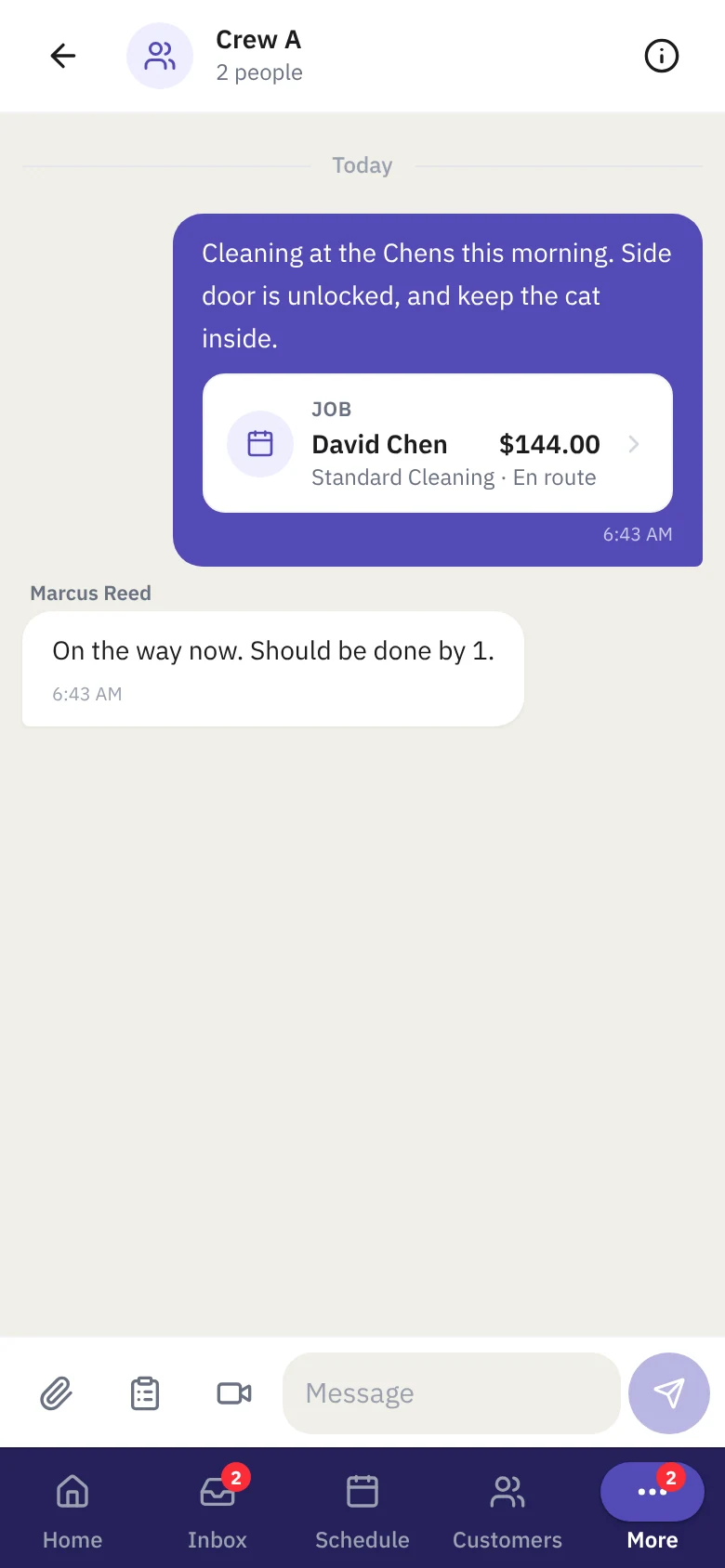
Instead of describing a job or a customer in a text, you send the thing itself. It shows up as a card your teammate can tap to open, and a request turns a message into a task with a due date.
Team chat is in beta. If you don’t see Team in your menu, email support@kairvio.com and we’ll turn it on for your account.
Finding it
Open Team in the menu. On a phone it’s under More, then Team. The number on the menu item is how many unread messages you have across all your chats.
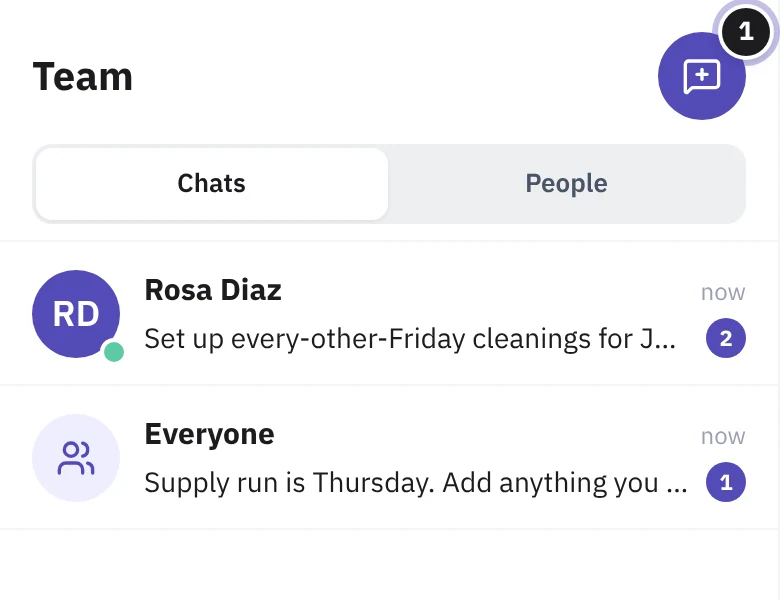
The Team page has two views, switched at the top:
- Chats: every conversation you’re part of, newest first.
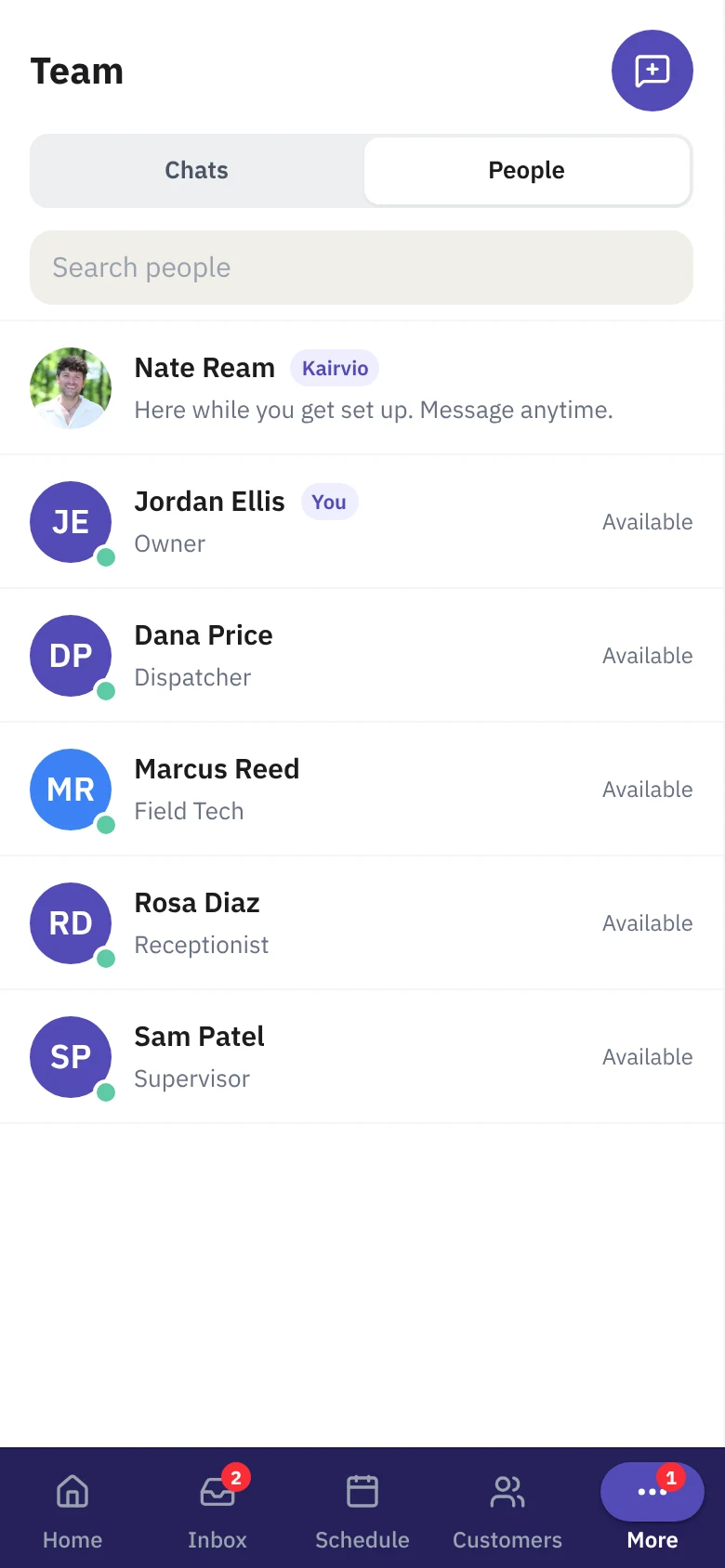
- People: everyone on your team, with their photo, job title, role and whether they’re available right now.
There are three kinds of chats:
- Everyone: one group for the whole business. It follows your team list, so new teammates join it automatically and deactivated ones leave it. Nobody can leave or rename it.
- Direct chat: you and one other person.
- Group: any set of people with a name, like “Crew A” or “Front desk”.
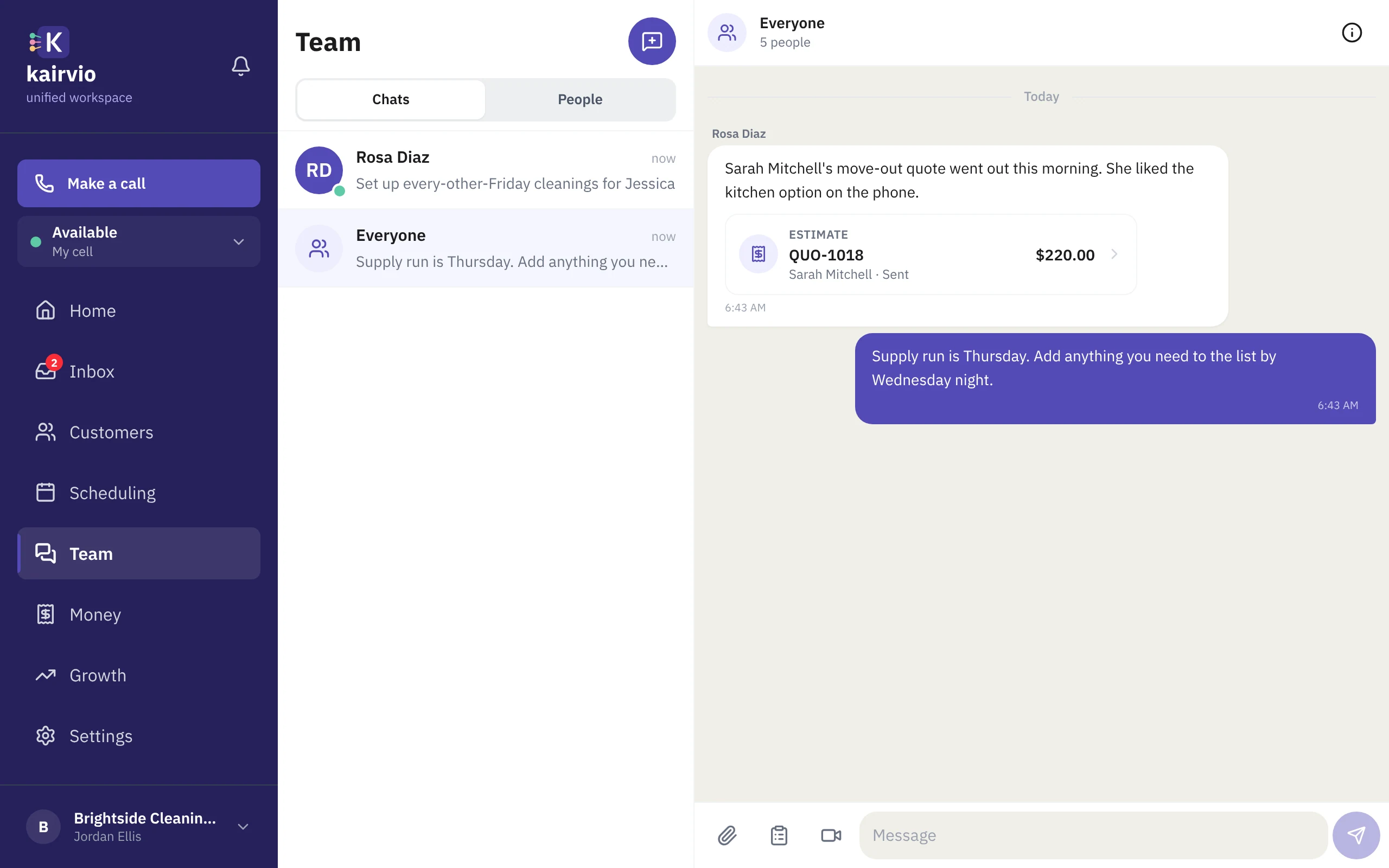
On a computer, your chats and the open conversation sit side by side.
Starting a chat
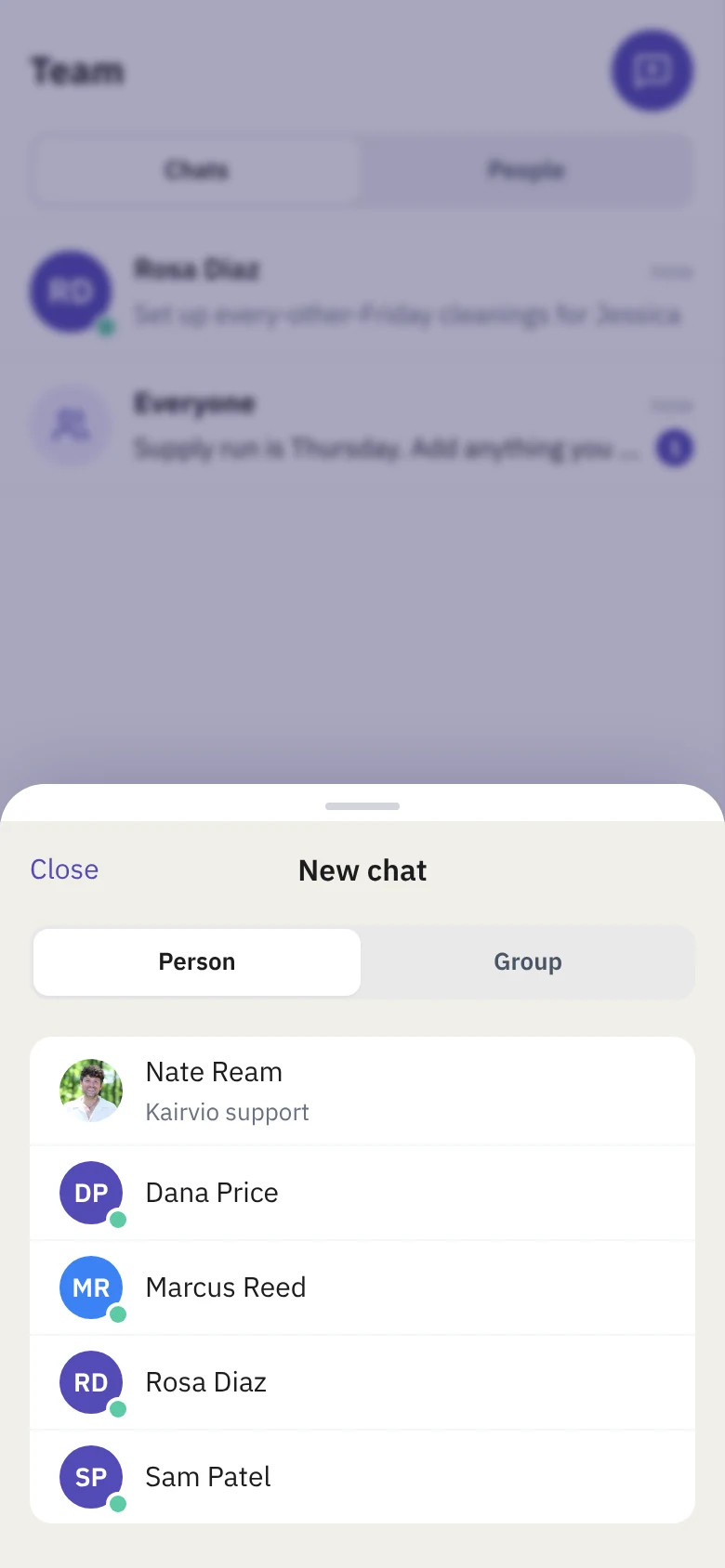
- Open Team and tap the New chat button at the top.
- Choose Person for a direct chat, or Group to pick several people and give the group a name.
- Tap a name, or name the group, pick its people and tap Create group. Then type your first message.
You can also start a direct chat from People: tap the person, then Message.
Sending messages, photos and files
Type in the box at the bottom of a chat. On a computer, Enter sends and Shift+Enter adds a new line. On a phone, tap the arrow.
- Photos and files: the paperclip attaches a photo, a PDF, a video or an audio file, up to 25 MB. Files stay private to your business.
- Mention someone: in a group, type @ and their name. They get a notification on their phone even when the group is otherwise quiet.
- Bad signal? A message that didn’t send stays in the chat with Tap to retry, so nothing is lost.
Sharing a customer, job or estimate
Most team conversations start with a customer, a job or an estimate. Send it to the team and it lands as a card that opens the real thing.
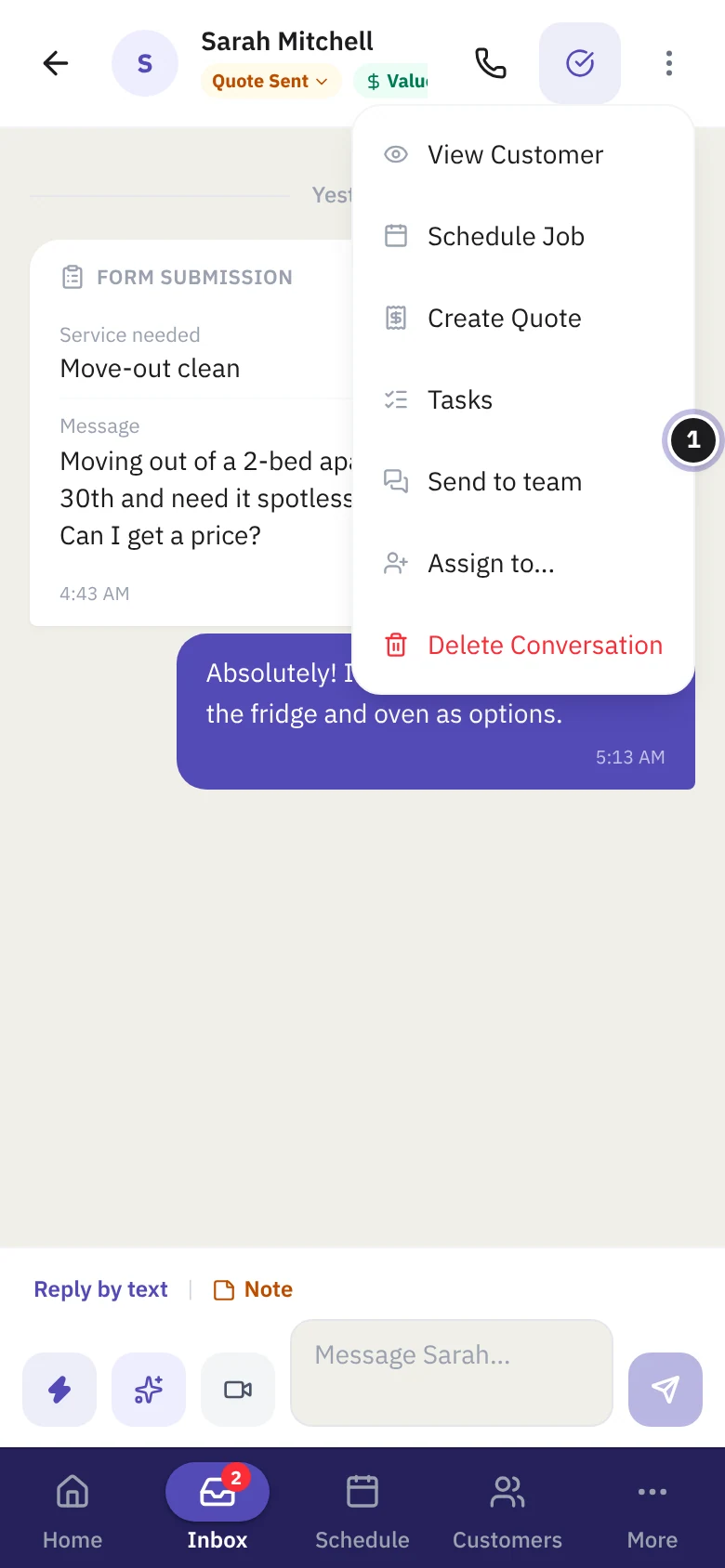
Where to find Send to team:
- Inbox conversation: the More actions menu (⋮), then Send to team.
- Job: open the job, then the Send to team row.
- Estimate or invoice: open it, then the Send to team row.
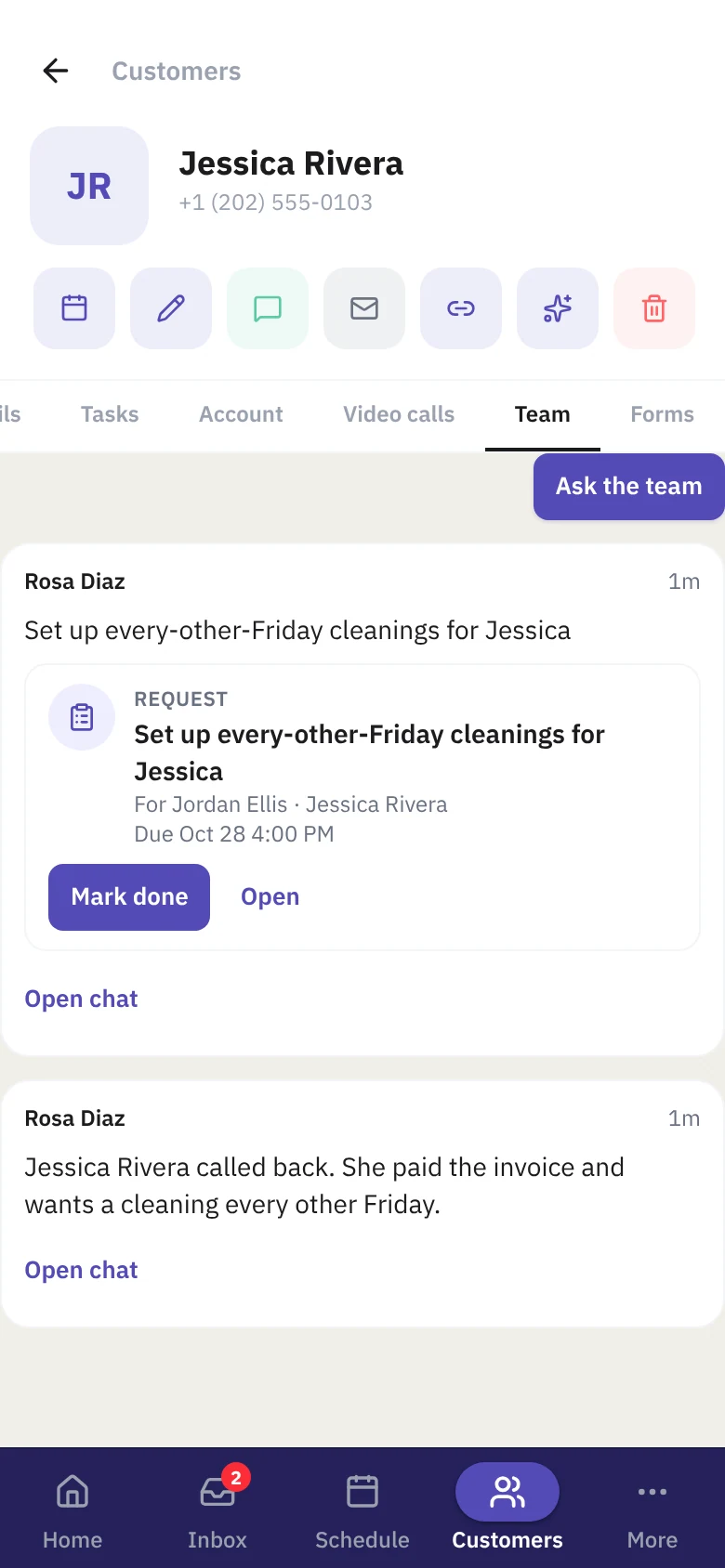
- Customer: the customer’s Team tab, then Ask the team.
Pick a chat or a person, add a note if you like, and tap Send.
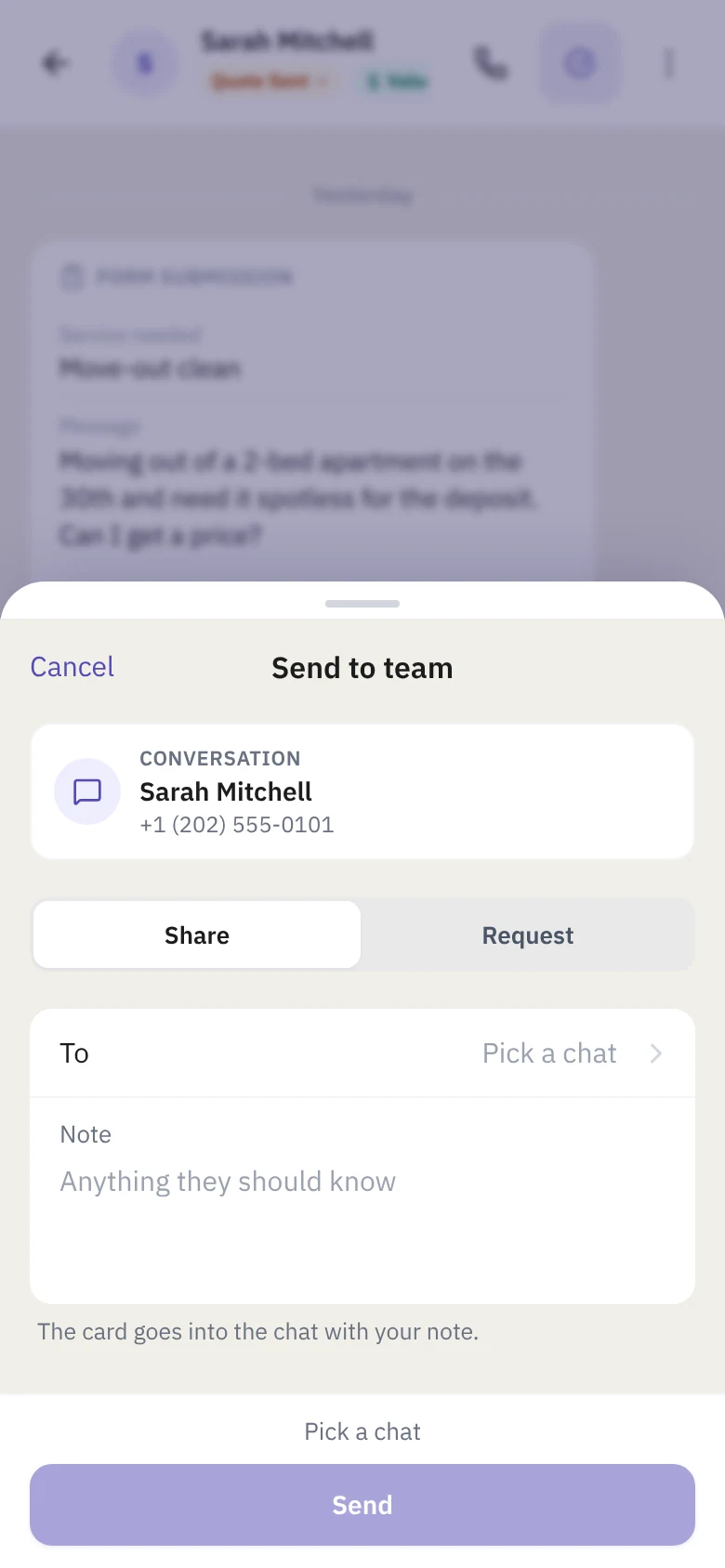
A card only shows what each person is allowed to see. A technician who can’t see prices gets the estimate card without the amount. Someone who can’t open that job sees “You don’t have access to this” instead of a broken link.
Requests: handing someone a task
A request is a message that’s also a task. Use it when you need someone to do something, not just know about it.
- In a chat, tap the clipboard button next to the message box (or choose Request in Send to team).
- Pick who it’s For, write What needs doing, and optionally a due date (By) and a note.
- Tap Send request.
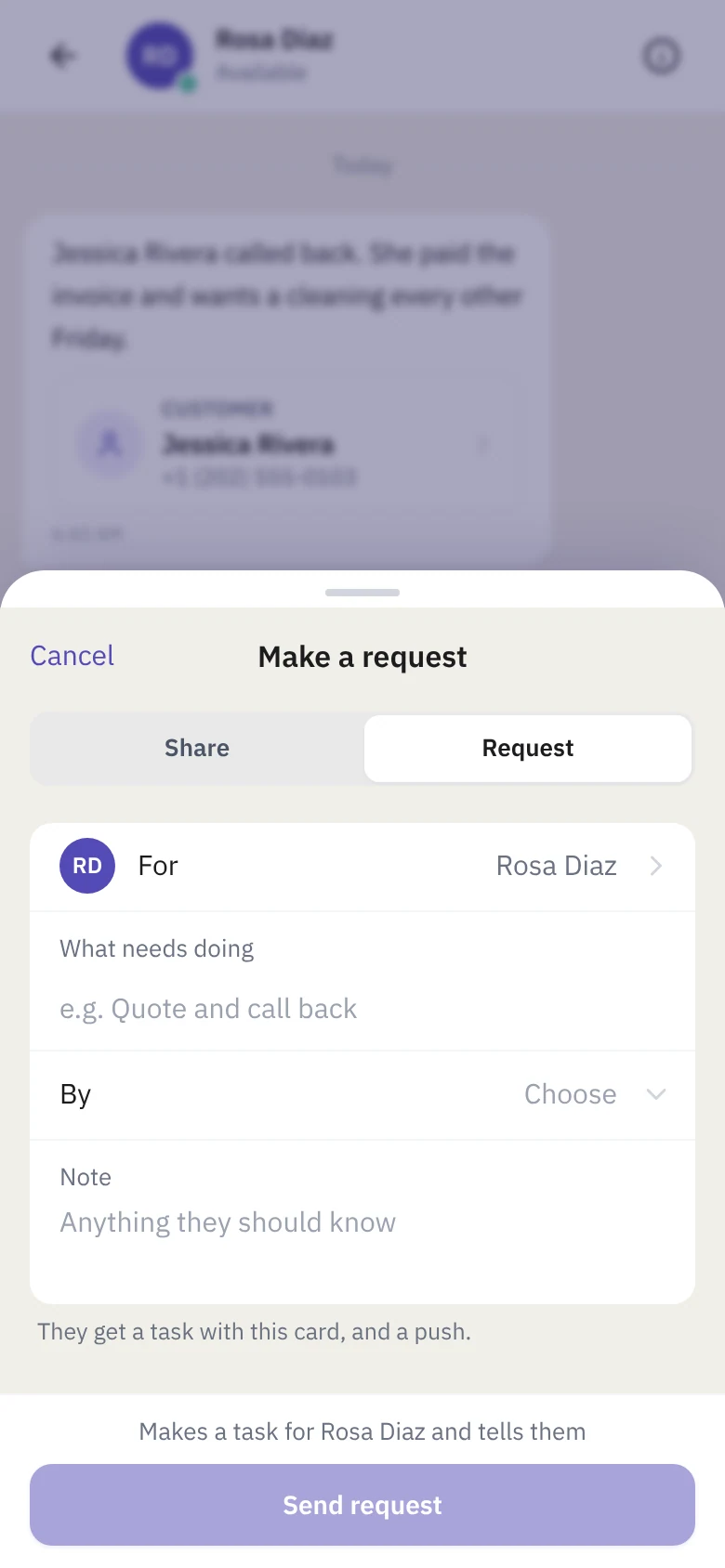
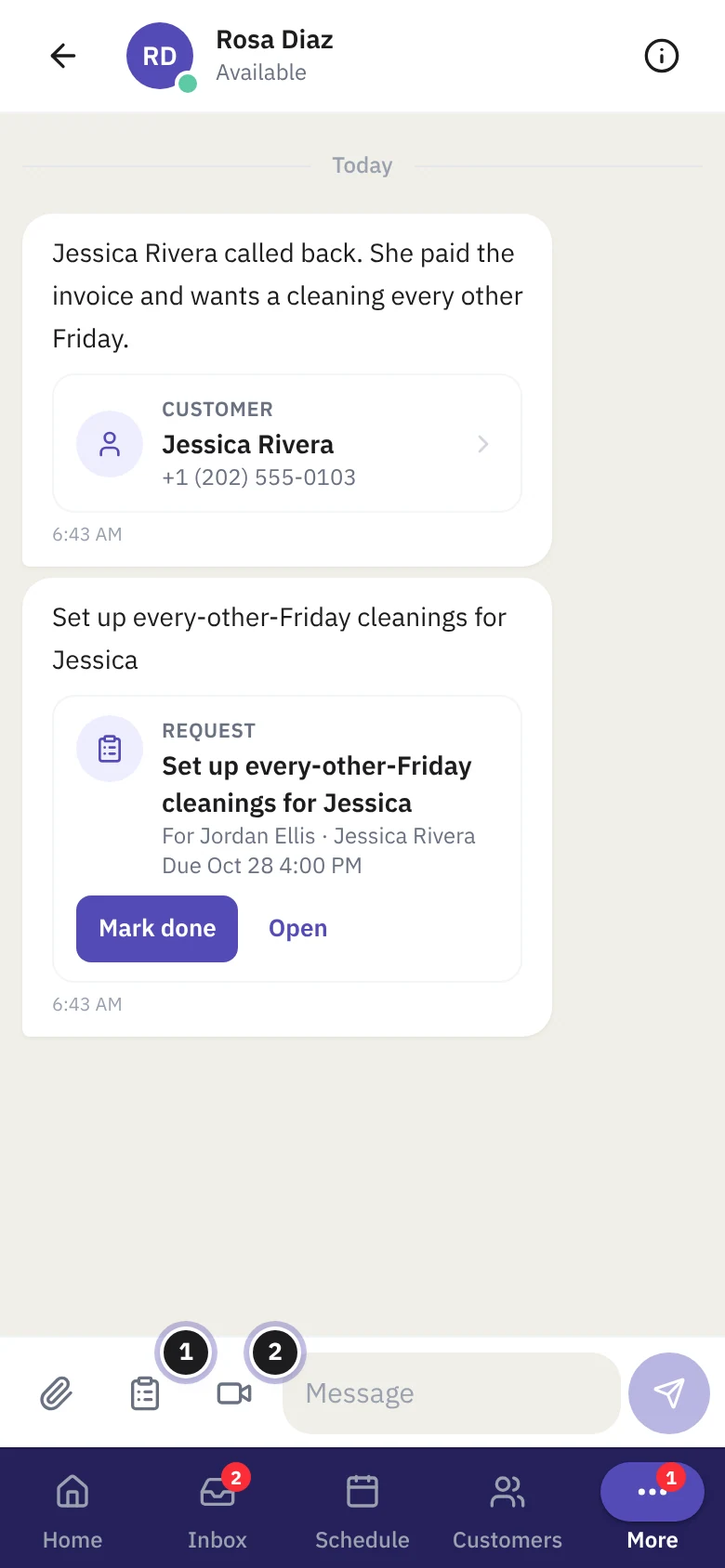
The person gets a notification, the request shows as a card in the chat, and it lands on their Home under their tasks. When they tap Mark done, everyone in the chat sees it change to done.
Anyone can make a request for themselves. Making one for someone else needs the Reply, Edit customers or Manage leads permission. The office roles have one of these; technicians usually don’t.
Everything about one customer
Every customer has a Team tab with everything your team has said about them, in one place, and an Ask the team button.
Notifications
Team chat tells you what matters without buzzing all day:
- A direct message to you: phone notification and bell.
- An @mention or a request for you: phone notification and bell.
- Someone starts a video call with you: phone notification with Join.
- Any other group message: bell only (the Team badge counts it).
Nothing is sent for a chat you’re looking at, and opening a chat marks it read. Phone notifications need notifications turned on for Kairvio: Settings › Profile › Notifications.
Kairvio support in your team
While your business gets set up, Kairvio support appears first in People with a Kairvio badge. Anyone on your team can message us in a direct chat. Support is never added to Everyone or your groups.
To hide it, the owner or an admin can switch off Show Kairvio support in Team in Settings › Team. Chats that already exist stay readable.
Who can use it
- Every role has team chat on by default. The owner and admins always have it.
- To take it away from one person, open Settings › Team, tap the person, and switch off Team chat under Communication. They lose the Team menu item; what they already saw stays.
- Whoever made a group, plus the owner or an admin, can add or remove people and rename it. Anyone else can leave it.
Tips
- Send the card, not a description. “Can you look at this?” with the estimate attached saves a phone call.
- Use a request when something has to get done by a time. It shows up on their Home, not just in the chat.
- Set your profile photo in Settings › Profile (owners: Settings › Business info) so your crew can spot your messages.
Quick answers
Someone doesn’t see Team in the menu. Team chat may be switched off for their login (Settings › Team, the person, Team chat), or they haven’t signed in since it was turned on. Refreshing the app fixes the second.
A new teammate isn’t in Everyone. Everyone updates when someone opens the Team page. Open it once after inviting them.
Can I edit or delete a message? Not yet. You also can’t mute a single chat or search inside one yet; search finds chats and people by name.
Can I text a customer from here? No. Team chat never reaches customers. Use the Inbox for that.
Can I call a teammate? Use a video call from the chat. With the camera off, it works as an audio call.