Connecting Facebook and Instagram
Why Connect Facebook and Instagram?
When customers message your business on Facebook Messenger or Instagram, those conversations can easily get buried in separate apps. Connecting them to Kairvio pulls every message into your unified inbox so you can respond from one place alongside your SMS, email, and web chat conversations.
Requirements
You need admin access to the Facebook Page you want to connect, and for Instagram, an Instagram professional account linked to that Page. If you’d rather not do this yourself, we can connect it with you on a short call.
Connecting Your Facebook Page
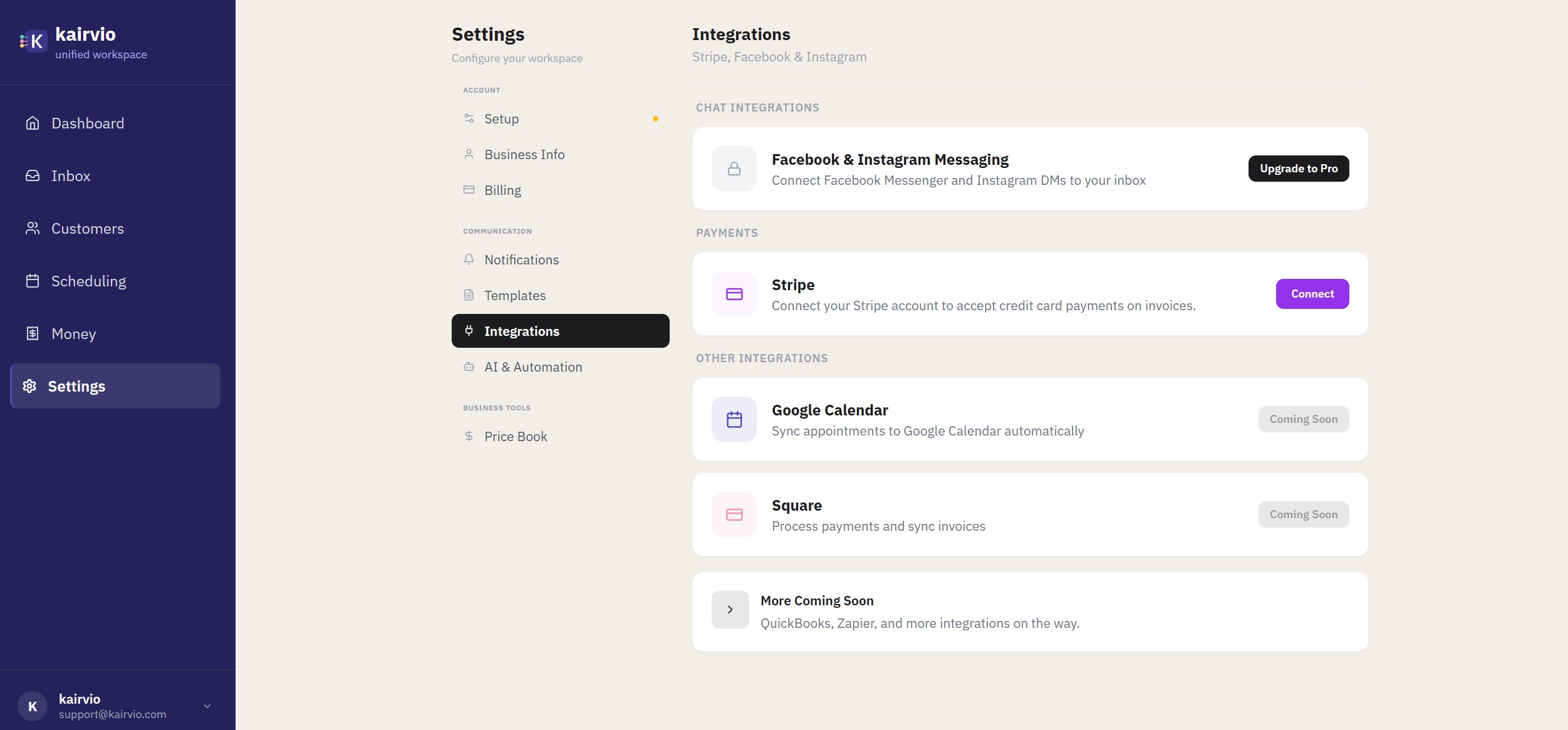
- Go to Settings > Integrations in the left sidebar. You’ll see the Integrations page with the description “Stripe, Facebook & Instagram.”
- Find the Chat Integrations section.
- Click Connect next to Facebook.
- Log in with the Facebook account that manages your business Page.
- Grant Kairvio permission to access your Page’s messages.
- Select the Facebook Page you want to connect and confirm.
Once connected, new Messenger conversations will start appearing in your inbox within a few minutes.
Instagram DMs — Included Automatically
If your Facebook Page has a linked Instagram business or creator account, Instagram DMs are connected automatically. There’s no separate setup step.
To check if your Instagram is linked to your Facebook Page:
- Open your Facebook Page settings on Facebook.
- Look for Linked Accounts or Instagram in the menu.
- Confirm your Instagram account is connected.
If it’s not linked yet, follow Facebook’s prompts to connect your Instagram account to your Page, then return to Kairvio. Instagram DMs will start flowing into your inbox once the link is in place.
Responding to Messages
- Messenger and Instagram messages appear in the unified inbox just like SMS and email.
- Each message is labeled with a channel icon so you know where it came from.
- Type your reply and hit send — the message goes back through the same channel the customer used.
Using the AI Assistant on Social Channels
If the AI Assistant is turned on, it can respond to Facebook Messenger and Instagram DMs automatically. This means customers who message you outside business hours still get a quick, helpful reply.
To enable this:
- Go to Settings > AI & Automation.
- Make sure the AI Assistant is turned on.
- Confirm that Messenger and Instagram are checked as active channels for the assistant.
Tip: Review the AI Assistant’s responses for the first few days to make sure the tone and accuracy match what you’d say yourself. You can fine-tune its behavior in the AI settings.
Troubleshooting
- Messages not appearing? Make sure you granted Kairvio the required permissions during the Facebook connection flow. You can disconnect and reconnect from Settings > Integrations > Chat Integrations to try again.
- Instagram DMs missing? Verify that your Instagram account is linked to the connected Facebook Page. The link must be in place on Facebook’s side for DMs to flow through.
- Permission errors? You need to be an admin or editor of the Facebook Page to connect it. Ask your Page admin to grant you the right role if needed.