Using the Unified Inbox
All Your Messages in One Place
The unified inbox pulls every customer conversation into Kairvio so you never have to jump between apps. Messages from SMS, email, and Facebook all land in the same view.
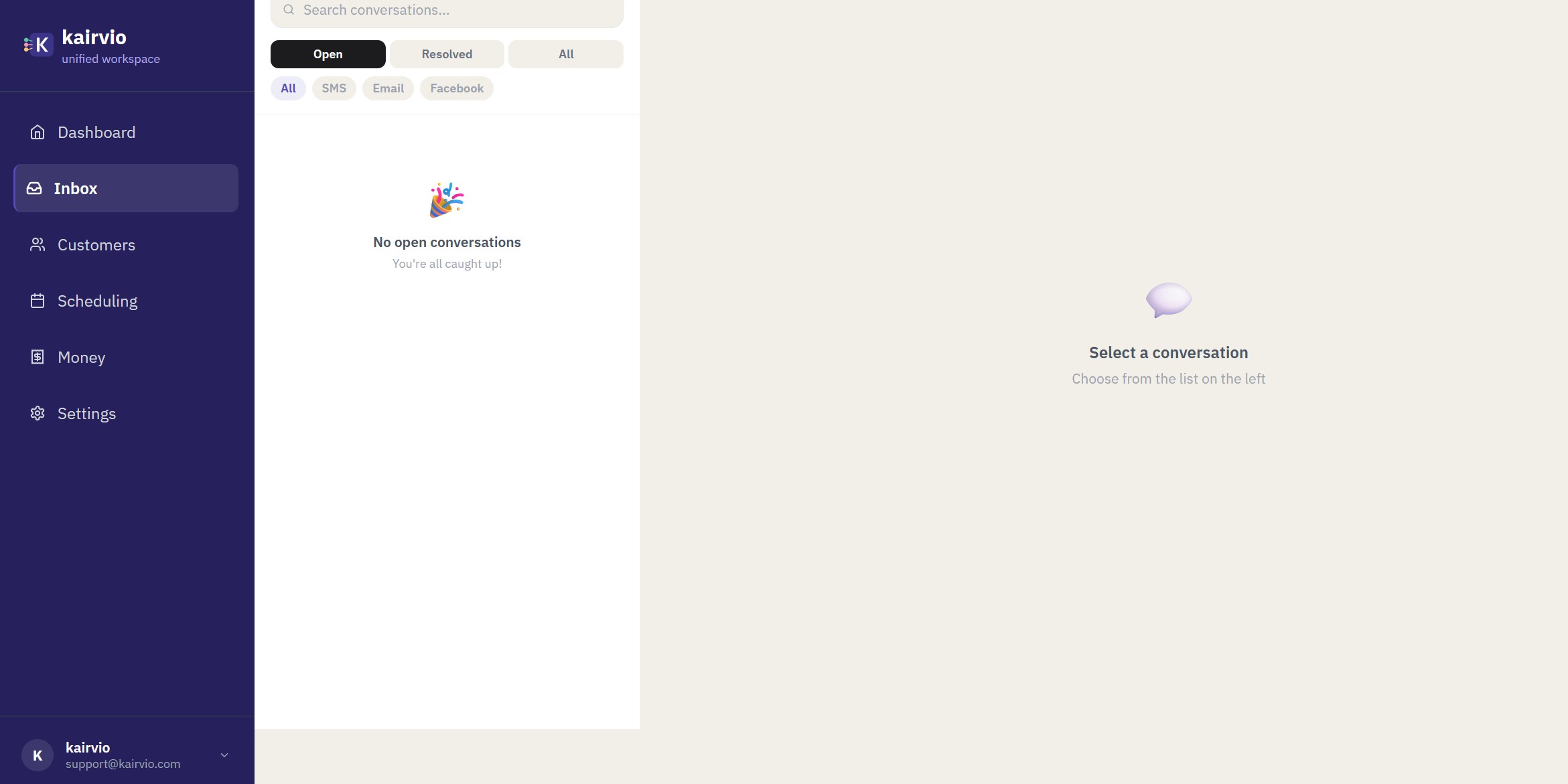
Each customer gets a single chronological thread, regardless of which channel they used to reach you. If someone texts you in the morning and then sends a Facebook message that afternoon, both appear in the same conversation.
Navigating the Inbox
- Click Inbox in the left sidebar to open your messages.
- Use the Search conversations… bar at the top to find a specific conversation by name or keyword.
- Below the search bar, use the filter tabs to switch between Open, Resolved, and All conversations.
- Use the channel filter pills to narrow by channel: All, SMS, Email, or Facebook.
- Conversations are listed on the left, with the most recent activity at the top. Each conversation shows the customer name or phone number, a channel badge (e.g., SMS, Facebook), a status badge (e.g., New, Booked), how long ago the last message was sent, and an unread count if applicable.
- Click any conversation to view the full message history on the right. When no conversation is selected, you’ll see a prompt to choose one from the list.
Understanding Status Badges
Each conversation displays a status badge that helps you see where a customer stands at a glance:
- New — A new inquiry you haven’t acted on yet.
- Booked — The customer has confirmed an appointment or job.
Status badges appear directly on conversations in the inbox list, so you can quickly scan which leads need attention and which are already scheduled.
Assigning Conversations
- Assign to a team member — Open a conversation, click the assignee dropdown, and choose a team member. They’ll be notified and the conversation will appear in their personal view.
Resolving Conversations
Once a job is done and there’s nothing left to follow up on, resolve the conversation to keep your inbox focused.
- Open the conversation.
- Mark it as Resolved.
- The conversation moves out of your Open inbox view but is never deleted — switch to the Resolved or All tab to find it again, or reopen it later.
Tip: Make it a habit to resolve conversations once they’re complete. A clean inbox helps you spot new leads faster.