Setting Up Your Business Profile
Why your profile matters
Your business profile powers invoices, booking confirmations, and customer-facing messages. Taking a few minutes to fill it out means everything looks professional from day one.
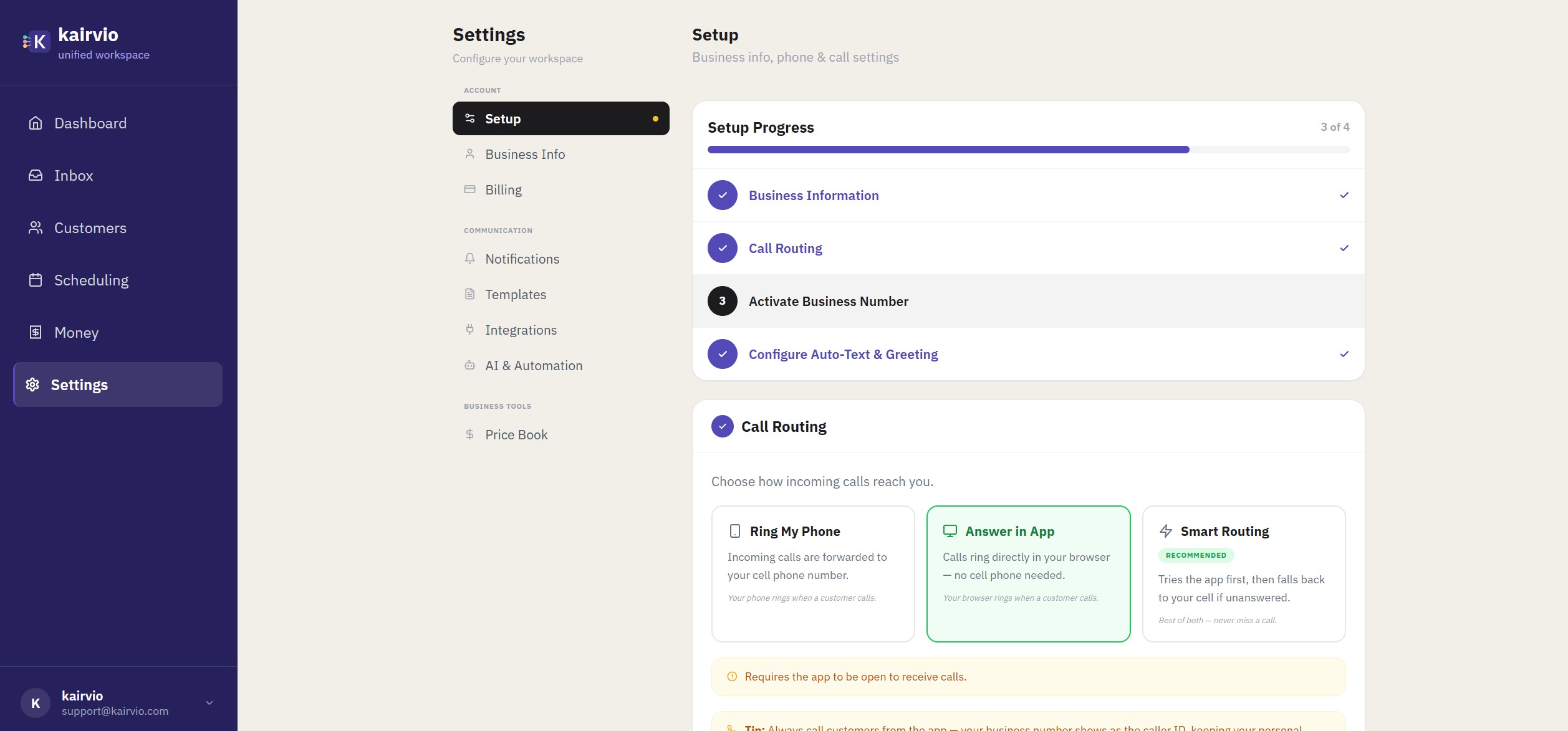
Edit your business details
- Go to Settings > Business Info.
- Fill in your business name, phone number, email, and physical address.
- Add a short description of what you do — this can appear in automated messages and review requests.
- Click Save.
Set your hours of operation
- In Settings > Business Info, scroll to the Hours section.
- Toggle each day on or off and set your opening and closing times.
- Click Save.
Kairvio uses your hours to manage scheduling availability and let customers know when to expect a response.
Add your logo and branding
- Go to Settings > Business Info and scroll to the Branding section.
- Upload your logo (PNG or JPG, at least 400 x 400 px recommended).
- Choose a brand color — this is used on invoices and your booking page.
- Click Save.
Build your price book
Your price book is the list of services you offer. It saves time when creating invoices and scheduling jobs.
- Go to Settings > Price Book.
- Click Add Service.
- Enter the service name, a short description, your price, and the estimated duration.
- Click Save.
- Repeat for each service you offer.
You can organize services into categories (for example, “Maintenance” and “Repairs”) to keep things tidy as your list grows.
Tips
- Upload a high-quality logo — it shows up on invoices, emails, and your booking page.
- Keep service descriptions short and customer-friendly. Customers may see them on estimates and invoices.
- You can edit or remove services anytime from Settings > Price Book.
- If you offer variable pricing, enter your base rate and adjust it per invoice when needed.