Setting Up the AI Assistant
The AI Assistant answers customer questions using your business info — services, pricing, hours, and any custom instructions you provide. It works across SMS, Facebook Messenger, and Instagram, so your customers get fast, accurate answers even when you’re busy.
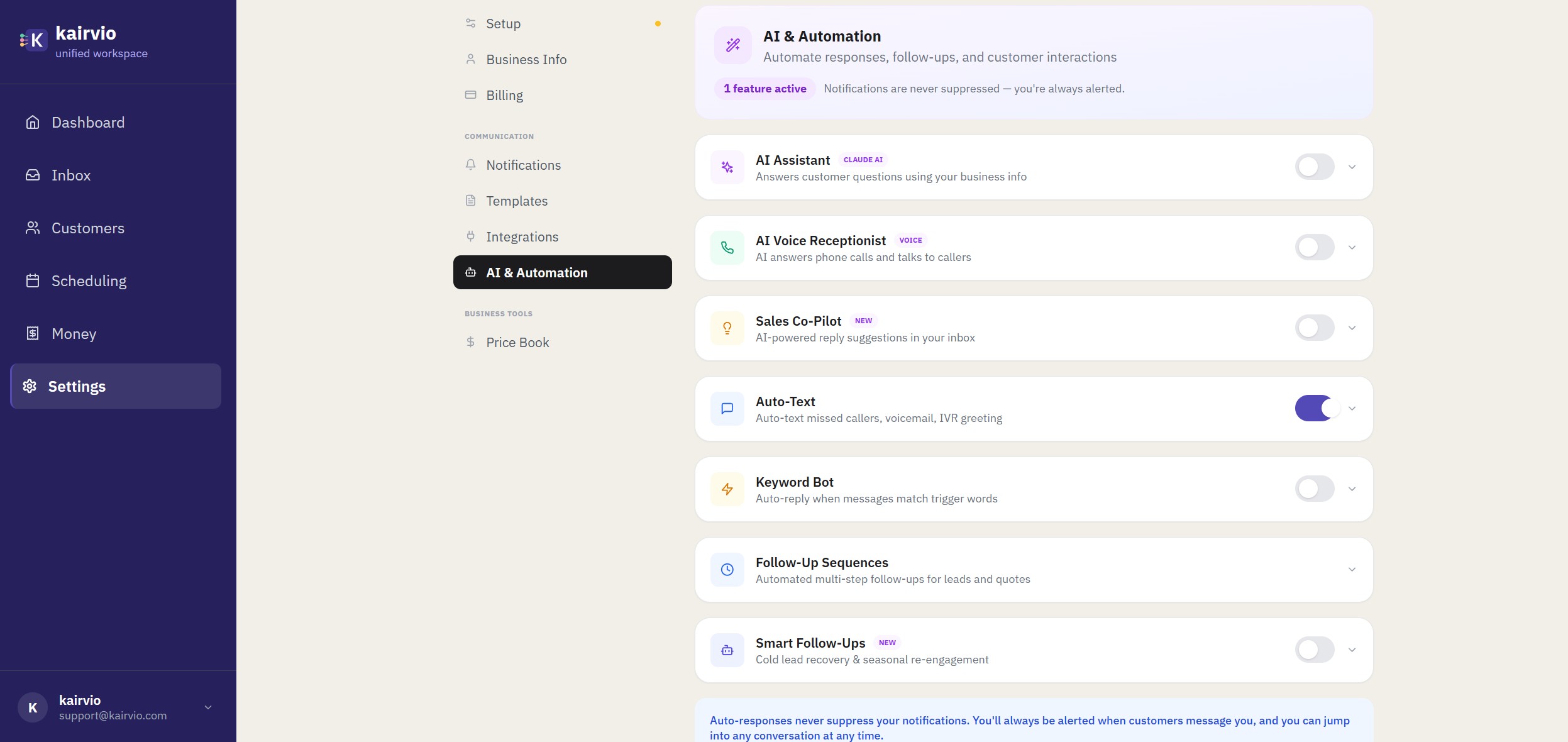
Every message sent by the AI is clearly labeled in your inbox so you always know what was handled automatically.
How to Turn It On
- Go to Settings > AI & Automation and find the AI Assistant card (look for the CLAUDE AI badge).
- Use the toggle to enable or disable the AI Assistant.
- Expand the card by clicking the chevron to configure its settings.
- Choose which channels to activate — SMS, Facebook Messenger, Instagram, or all three.
- Add any Custom Instructions to guide how the AI responds (more on this below).
- Optionally enable Share Availability so the AI can tell customers when you’re free.
- Optionally enable Share Booking Link so the AI can send a direct link to book with you.
- Click Save.
What the AI Already Knows
You don’t need to teach the AI everything from scratch. It automatically pulls from your account:
- Your business name
- Business hours
- Your price book (services and pricing)
To make responses even more helpful, add these details in the Custom Instructions field:
- Your service area (cities, zip codes, radius)
- Specialties or popular services
- Current promotions or seasonal offers
- Anything unique about how you work (same-day availability, free estimates, etc.)
How Human Takeover Works
When you reply to a conversation manually, the AI automatically pauses on that thread. By default, it steps back for 30 minutes to give you room to handle the conversation yourself. After that window passes, the AI picks back up if the customer sends another message.
You can adjust the takeover window inside the AI Assistant card settings under Human Takeover Duration.
Tips for Getting Started
- Start with the default 30-minute takeover window. You can always adjust it later once you see how conversations flow.
- Keep your price book updated. The AI references it directly, so outdated prices mean outdated answers.
- Review AI conversations in your inbox for the first week. This helps you spot anything you want to fine-tune in your custom instructions.
- Enable Share Availability and Share Booking Link together. This gives the AI everything it needs to move a conversation toward a booking.