Configuring the AI Voice Receptionist
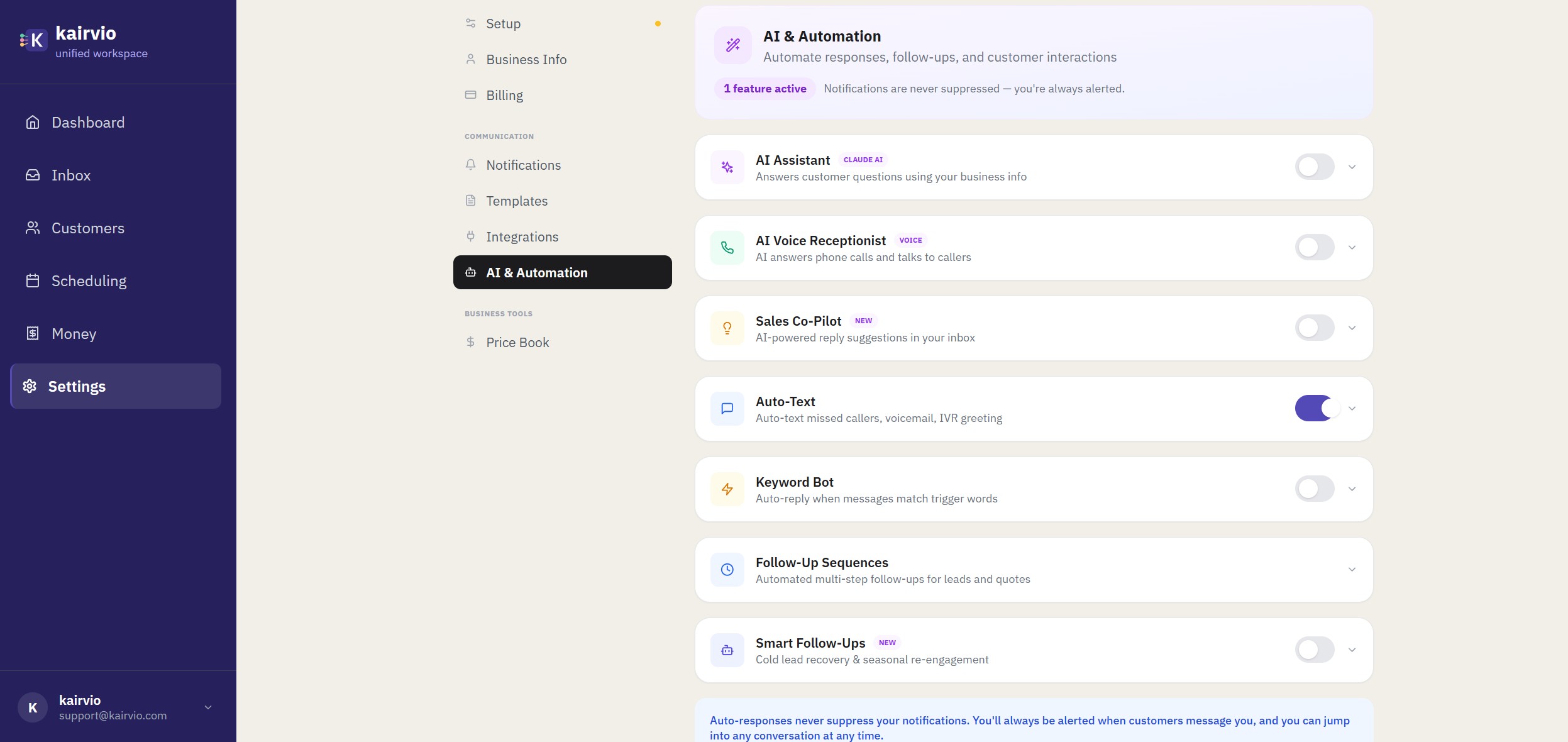
The AI Voice Receptionist answers phone calls and talks to callers on your behalf. It handles common questions, shares pricing from your price book, and offers to transfer the caller to you when needed. A full transcript of every call is saved to your inbox automatically.
How to Turn It On
- Go to Settings > AI & Automation and find the AI Voice Receptionist card (look for the VOICE badge).
- Toggle the card on, then expand it by clicking the chevron to see all available settings.
- Customize your greeting — this is what callers hear first.
- Review and adjust any additional settings to match how you want the AI to handle calls.
- Click Save.
Writing a Good Greeting
Your greeting is the first thing callers hear, so it sets the tone for the entire interaction. A few guidelines:
- Match the greeting to your brand voice. If you’re casual and friendly on your website, be casual and friendly on the phone.
- Keep it short. One to two sentences is plenty.
- Let the caller know they’re speaking with an assistant, not a person.
Example: “Hi, thanks for calling Greenview Landscaping! I’m an automated assistant and I can help with questions about our services, pricing, and availability. How can I help you today?”
How Transfers Work
If a caller asks to speak with a real person at any point, the AI will offer to transfer them. You don’t need to configure anything extra — this behavior is built in.
Tips
- Keep your price book current. The AI pulls pricing directly from it during calls.
- Listen to a few transcripts after setup. Reading through the first several call transcripts helps you spot anything to adjust in your greeting or custom instructions.
- Update your greeting seasonally. If you run promotions or your hours change, make sure the greeting still makes sense.