Customizing Notifications
Overview
Kairvio sends notifications to both you and your customers at key moments — when a call is missed, a quote is ready, an appointment is coming up, or a payment is due. You can control alert preferences, delivery channels, timing, and sender identity from Settings > Notifications (under the COMMUNICATION section).
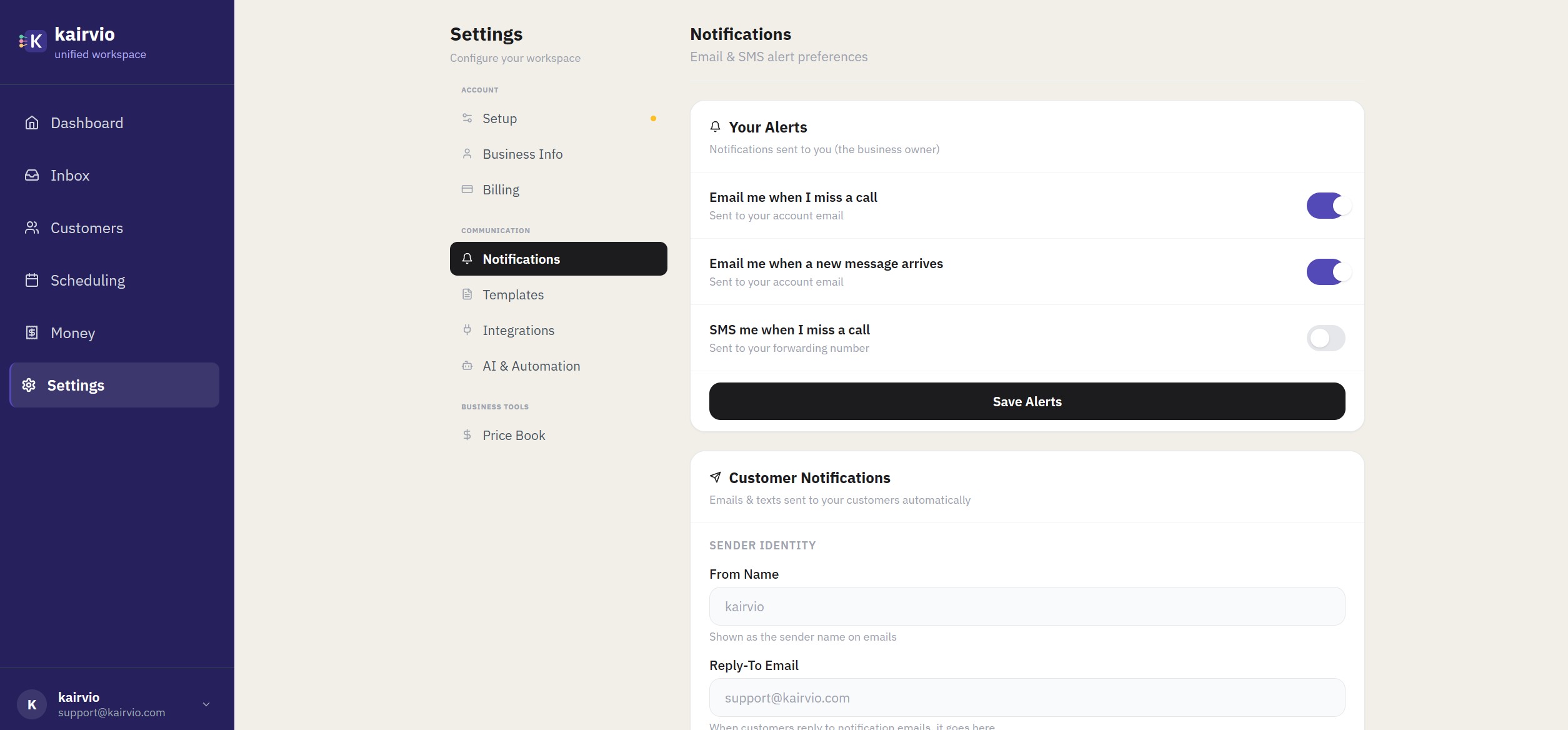
Your Alerts
At the top of the Notifications page, you’ll find the Your Alerts section. These control when you personally get notified:
- Email me when I miss a call
- Email me when a new message arrives
- SMS me when I miss a call
Toggle each alert on or off based on how you want to stay informed, then click Save Alerts to apply your changes.
Customer Notifications
Below your personal alerts is the Customer Notifications section. This is where you configure what your customers receive and how it looks.
Sender Identity
Set who your notifications appear to come from:
- From Name — The sender name your customers see (e.g., “Ace Plumbing” instead of “Kairvio”).
- Reply-To Email — When customers reply to a notification email, it goes to this address.
Notification Types
Each notification type can be toggled on or off independently for Email and SMS:
- Quotes — Sent when you share a quote with a customer. Toggle email and SMS separately.
- Invoices — Sent when you share an invoice. Toggle email and SMS separately.
- Appointment Confirmations — Sent when an appointment is booked. Toggle email and SMS separately.
- Appointment Reminders — Sent before an upcoming appointment. Toggle email and SMS separately.
Tips
- Enable both email and SMS for appointment reminders to maximize the chance your customer sees it.
- Make sure your From Name and Reply-To Email are set so customers recognize your messages and can reply directly to your business.
- To customize the content of notification messages, visit Settings > Templates (under the COMMUNICATION section).