Managing Your Schedule
Your schedule is the hub of your daily operations in Kairvio. Open it by clicking Scheduling in the sidebar — the page header reads Schedule. Here’s how to make the most of it.
Schedule Views
Kairvio gives you three ways to look at your schedule using the Today, Week, and List tabs at the top of the Schedule page:
- Today — See everything on your plate right now. Great for starting your morning and staying on track throughout the day. Each date section shows a header like FRIDAY, MARCH 20 - 1 job so you can see at a glance how many jobs you have.
- Week — Plan ahead with a full seven-day layout. Use this to spot gaps, move things around, and balance your workload.
- List — A simple, scrollable list of upcoming jobs. Handy when you just need a quick rundown without the visual grid.
Filtering by Tech
If you have multiple team members, use the Tech filter button at the top of the Schedule page to narrow the view down to a specific technician’s jobs.
Creating a Job
- Tap the + New Job button in the top right of the Schedule page.
- Select a customer from your contact list, or add a new one on the spot.
- Choose a service from your price book to automatically pull in the correct pricing and estimated duration.
- Pick a date and time for the job.
- Adjust the duration if needed.
- If your team uses Kairvio, assign a team member to the job.
- Add the customer’s address if you need turn-by-turn navigation to the job site.
- Save the job.
Linking Services from Your Price Book
When you select a service from your price book during job creation, the pricing and description carry over automatically. This keeps your quotes consistent and saves you from re-entering details every time.
If you haven’t set up your price book yet, head to Settings > Price Book (under the BUSINESS TOOLS section) to add your services and rates.
What You See on Each Job
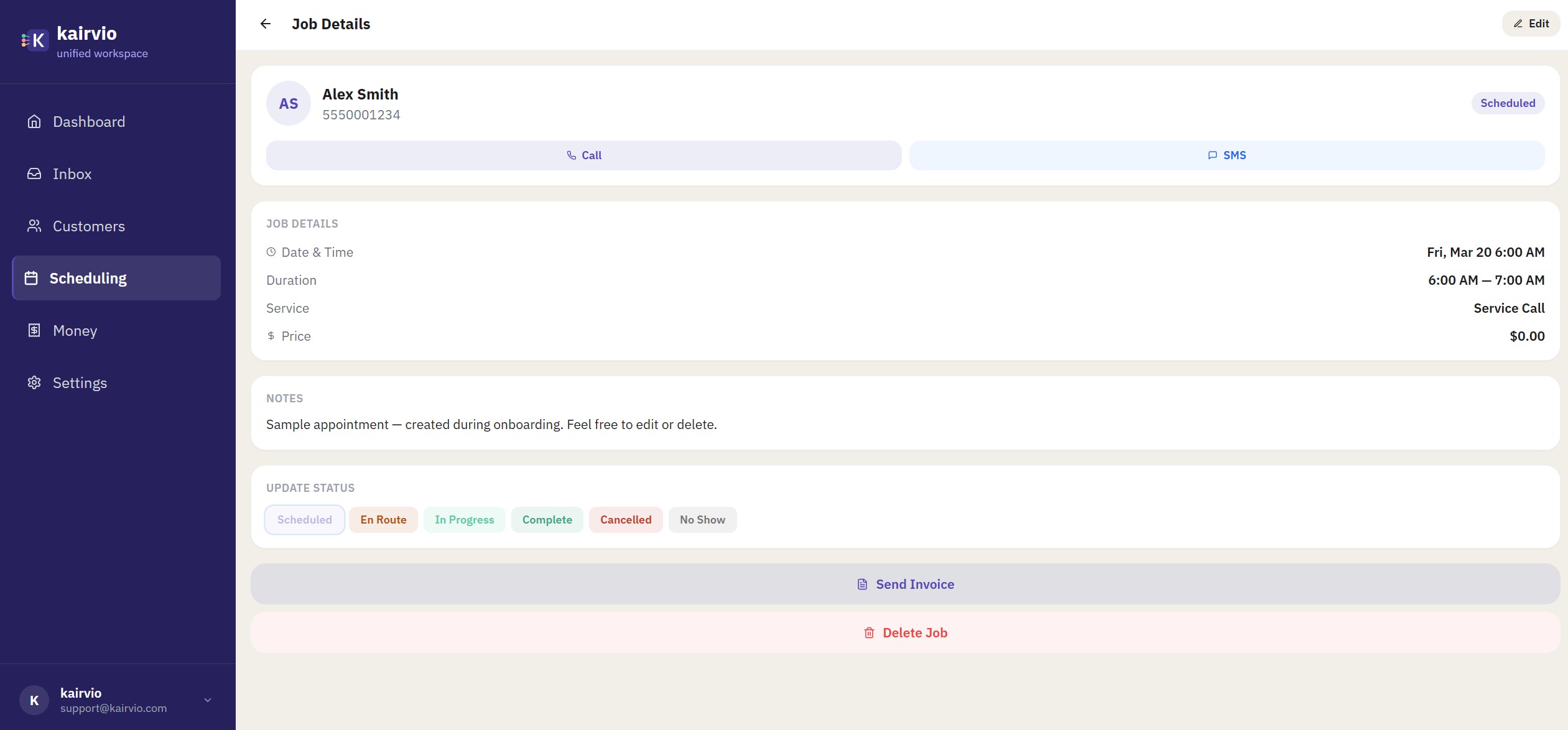
Each job card on the Schedule page shows you the key details at a glance: the customer name, service type (such as Service Call), time range, price, and a status badge (such as Scheduled).
Job Statuses
Every job moves through three statuses:
- Scheduled — The job is booked and on your schedule. You’ll see this as a status badge on each job card.
- In Progress — You’ve started the job. Update the status when you arrive so your records stay accurate.
- Completed — The job is done. Marking it complete keeps your schedule clean and your reporting up to date.
Update the status directly from the job detail screen.
Adding a Customer Address
When you include an address on a job, Kairvio lets you tap it to open navigation on your phone. This is especially useful if you’re running a mobile service business and heading to multiple job sites throughout the day.
Tips for Staying Organized
- Start each morning in the Today view on the Schedule page to see what’s ahead.
- Use the Week view on slower days to plan and fill gaps in your schedule.
- Always link jobs to price book items so your pricing stays consistent.
- Keep job statuses updated — it helps with invoicing and reporting later on.